

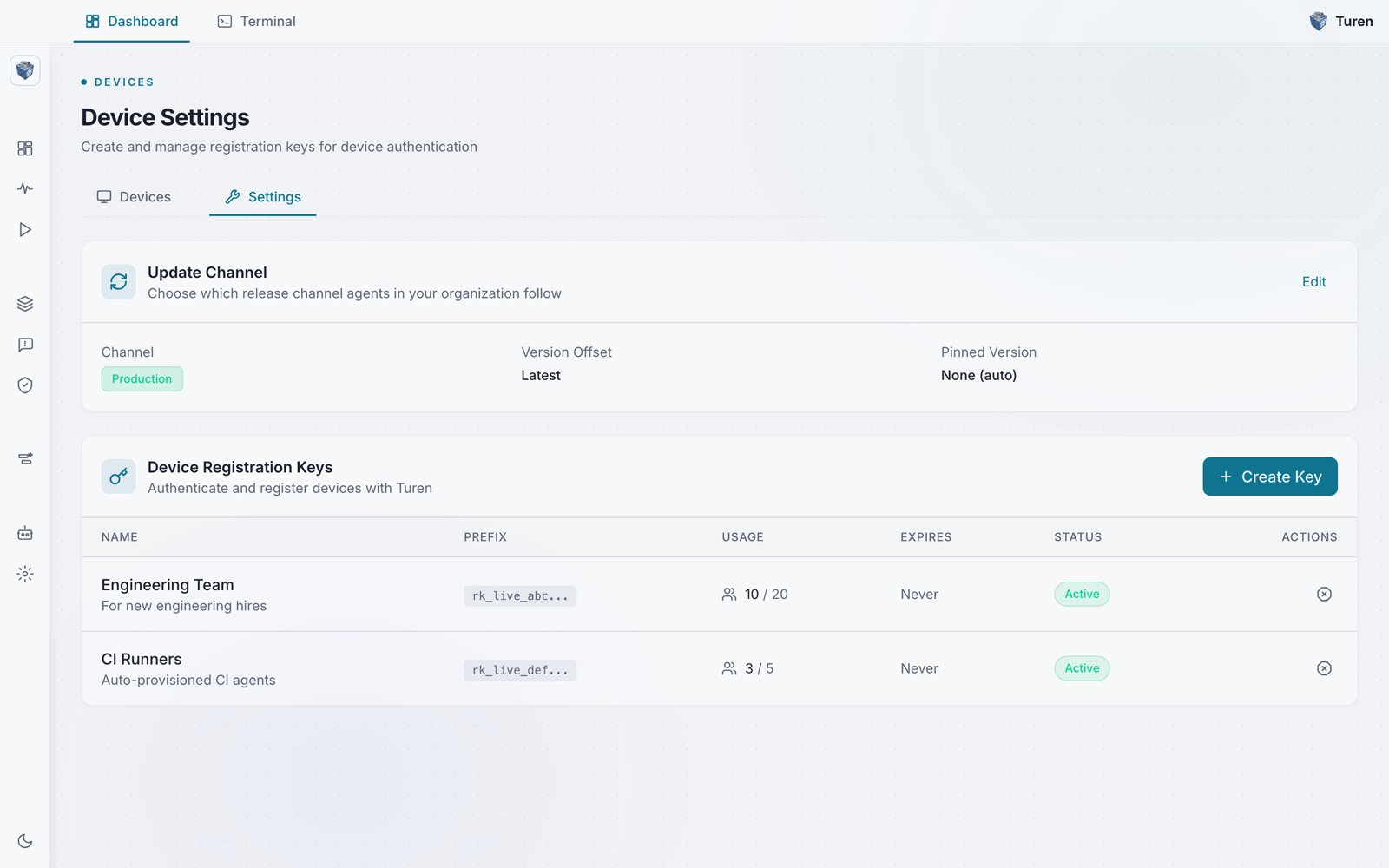
Device Settings: the update channel plus the device registration keys table with prefix, usage, expiry, and status.
Registration keys are optional for desktop users. If you install the desktop app, you can register a machine by launching it and signing in (or signing up), with no key required. See keyless desktop sign-in below. Keys remain the path for headless, fleet, and CI installs where no one signs in interactively.
When You Need a Key
Keyless desktop sign-in is the recommended first-run flow for individual developers. The rest of this page covers keys for the headless, fleet, and CI cases.
Key Format
Registration keys use the prefixrk_live_ followed by a random string:
Creating a Registration Key
Registration keys are managed separately from API keys. Navigate to Devices > Settings (/agent-control/settings).
1
Click Create Key
Fill in the key details:
2
Copy the key
The full key is shown once. Copy it immediately: you won’t be able to see it again.
3
Share with your team
Distribute the key securely to developers who need to install the agent.
Registration keys are managed at Devices > Settings (
/agent-control/settings), not in Org Settings > API Keys. They are a separate concept from dashboard API keys.How Registration Works
When a developer installs the Turen agent with a registration key:- The agent generates a unique machine fingerprint
- It sends the fingerprint and registration key to the Turen API
- The API validates the key, creates an agent record, and returns a permanent agent secret (
as_live_) - The key’s usage count is incremented
- The agent stores the agent secret securely for future authentication
Key Properties
Managing Keys
From Devices > Settings (/agent-control/settings), you can:
- View all keys: See key name, description, prefix, usage count (current / max), expiry, and status
- Revoke a key: Prevent any further registrations with this key
- Delete a key: Permanently remove a revoked key