

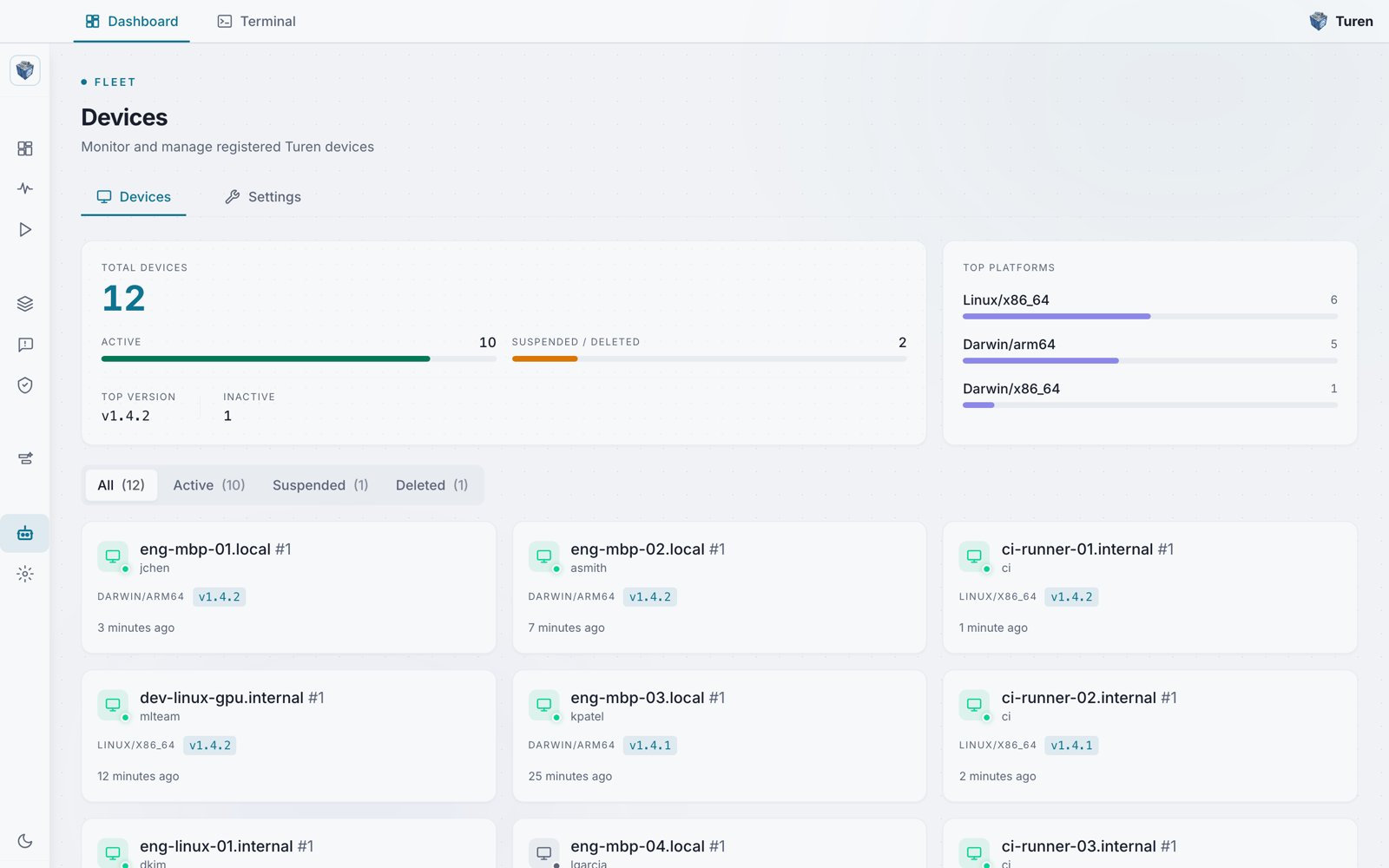
The Turen Devices page shows every registered machine in your fleet with its user, platform, agent version, and last check-in.
Prerequisites
- A machine running macOS 13 (Ventura) or later, a systemd-based Linux distribution (Ubuntu/Debian, RHEL/CentOS/Fedora), or Windows 11, on x86_64 or arm64
- Claude Code installed
- A Turen account: sign up at dashboard.turen.io
Step 1: Install the Agent
Install the Turen agent. Each installer bundles the background agent (turen-watchdog, turen-pkg, turen-batou, turen-updater) and the Turen desktop app, and configures Claude Code automatically viamanaged-settings.json.
Grab the latest installer for your OS from turen.io/download (no sign-in required), or from the Downloads section of your dashboard.
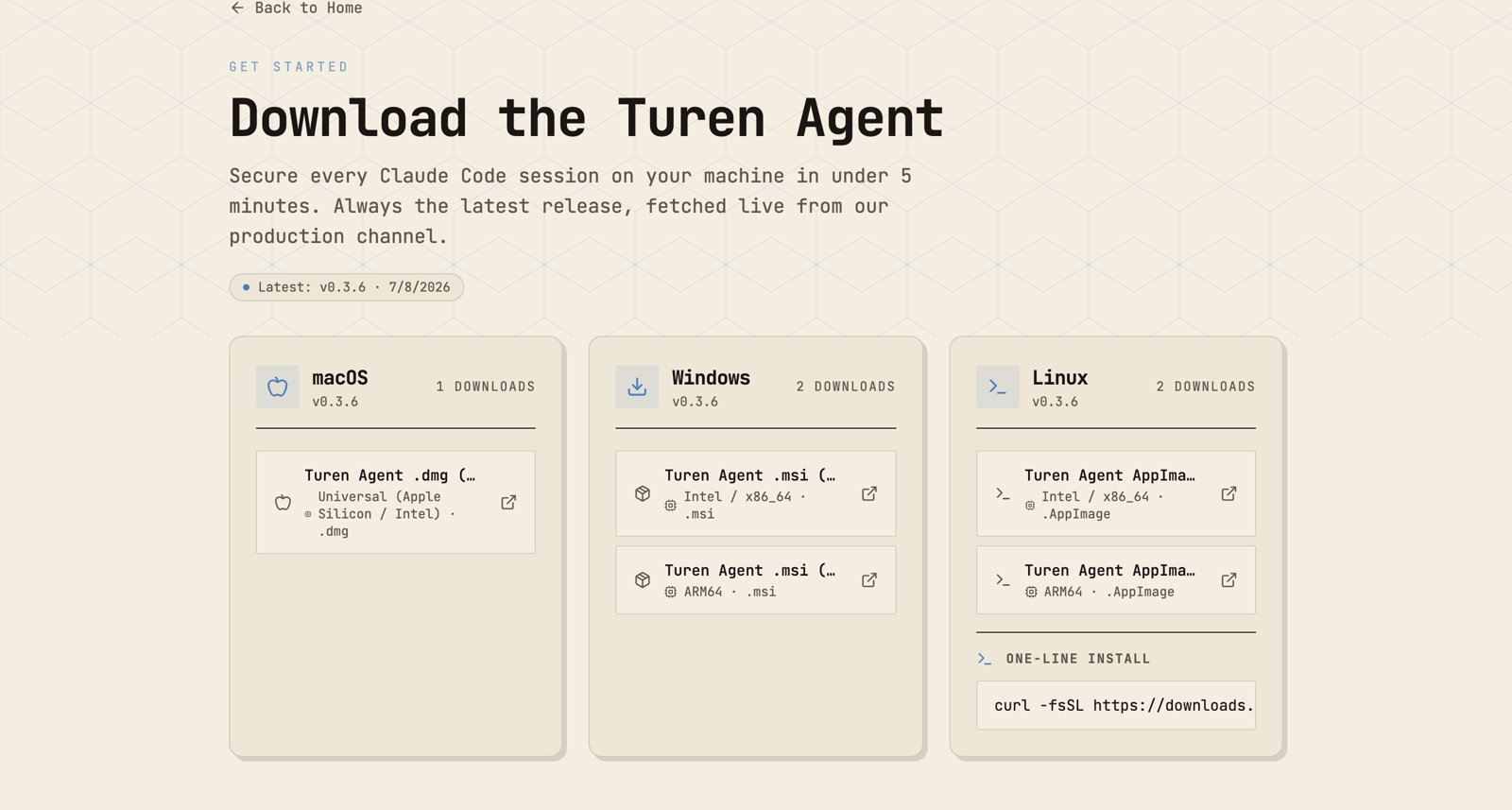
turen.io/download offers the latest agent for all three platforms: a Universal macOS .dmg, Windows .msi (x86_64 and ARM64), and Linux AppImage (x86_64 and ARM64), plus a one-line install.
- macOS
- Linux
- Windows
Download the Universal
.dmg installer from turen.io/download or the Downloads section of your Turen dashboard, open it, and follow the installation prompts. The .dmg is a single universal build for both Apple Silicon and Intel. Turen installs to /Applications/Turen.app and starts the agent as a background LaunchDaemon.If the installer asks for a registration key, you can leave it blank and sign in through the desktop app in the next step.Step 2: Launch the Desktop App and Sign In
Open the Turen desktop app (from your Applications, or runturen-desktop). On Linux, launch it as your normal user in a graphical session, not as root.
Sign in with email and password or with Google. If your account has an authenticator app (TOTP) enrolled, the app prompts for the 6-digit code. You enroll and manage MFA factors in the dashboard under User Settings.
Signing in registers this machine with your organization over local IPC. No key or environment editing required. Once you are signed in, the agent authenticates itself and needs no further configuration.
Step 3: Use Claude Code
Open a new terminal and run Claude Code as normal:Step 4: Verify in the Dashboard
Head to dashboard.turen.io. Within a minute, you should see:- Your device appears under Devices
- LLM requests flowing in the LLM Dashboard
- Sessions available for replay under Monitor > Replay
Alternative: Registration Keys for Fleet, Headless, and CI
For headless servers, CI runners, or scripted fleet rollouts where no one signs in interactively, register with a registration key instead.1
Generate a key
In the dashboard, go to Devices > Settings and create a key. It looks like
rk_live_abc123....2
Install with the key
On Linux, install agent-only and supply the key through the environment file:On macOS, provide the key when the installer prompts for it. The machine registers automatically on first check-in, no desktop sign-in needed.
Next Steps
Dashboard Overview
Learn what the dashboard shows you.
Security Rules
Explore the built-in security rules.
Configure Policies
Customize policies for your organization.
Team Setup
Invite your team and manage access.