

Triggers
An automation has exactly one trigger: an interval, a cron schedule, or a local event. Provide exactly one ofinterval_seconds, cron_expression, or event_trigger when creating it.
Interval
interval_seconds sets how often the automation runs, in whole seconds. The minimum is 60 seconds.
Cron
cron_expression uses five fields — minute, hour, day of month, month, weekday — for example */5 * * * * or 0 9 * * MON-FRI. Month and weekday names are accepted (JAN–DEC, SUN–SAT).
Cron fire times are timezone-aware. Pass an IANA timezone such as America/New_York; it defaults to UTC.
Event triggers
Event triggers are local only — no network triggers are supported. There are two kinds:- file-change: fires when a file under the automation’s directory changes.
pathslists 1–20 relative glob patterns (for examplesrc/**/*.ts). Patterns must be relative to the automation directory: no absolute paths, no..segments. Rapid bursts are coalesced withdebounceMs, which defaults to 1000 ms and caps at 60000 ms. - session-end: fires when a local session in the automation’s directory ends. Optionally filter by
outcomes(successand/orfailure),sessionID, oragent. Omit a filter to match any value. An automation’s own runs never re-trigger it.
fireEvent) is core-only: it is driven by the local scheduler watching the filesystem and session events. It is not exposed on the HTTP API.
Steps
Each step is an agent turn or a skill invocation with a name and a task. A step can name askill (the task becomes its instructions) or omit it for a plain agent turn. Later steps can reference earlier steps with {{ steps.<id>.output }} and {{ steps.<id>.artifacts }}; only earlier steps may be referenced. Step IDs are derived from step names (lowercased, runs of non-alphanumerics become underscores) and must match ^[A-Za-z][A-Za-z0-9_-]*$.
Every step also sees trigger context: {{ trigger.type }}, {{ trigger.scheduledAt }}, and {{ trigger.payload.<field> }} (for example the changed file on a file-change trigger, or the sessionID and outcome on a session-end trigger).
Each step inherits the automation’s agent and model unless it overrides them with its own agent or model.
Conditional steps with when
when is an optional condition string evaluated before the step runs, after bindings are resolved. When it resolves to a falsy value — false, 0, no, off, skip, null, undefined, or empty — the step is skipped and the run moves on. Omit when to always run the step. Conditions are limited to 2000 characters.
Failure policy with onFailure
on_failure decides what a step failure does to the run:
stop(default): the step failure fails the run.continue: the error is recorded on the step output and the run proceeds to the next step.
Runs lifecycle
Each firing creates a run that moves through these statuses:
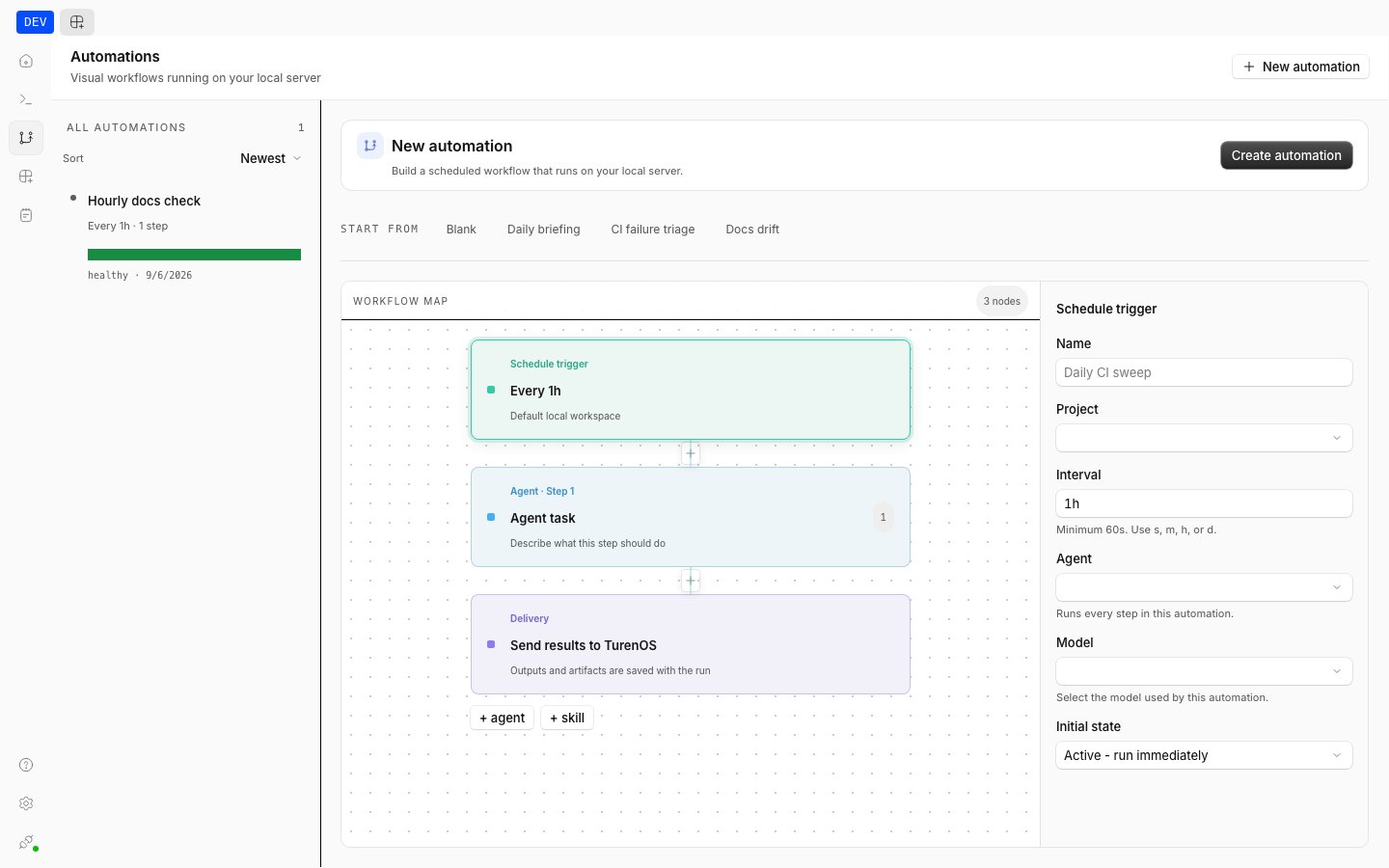
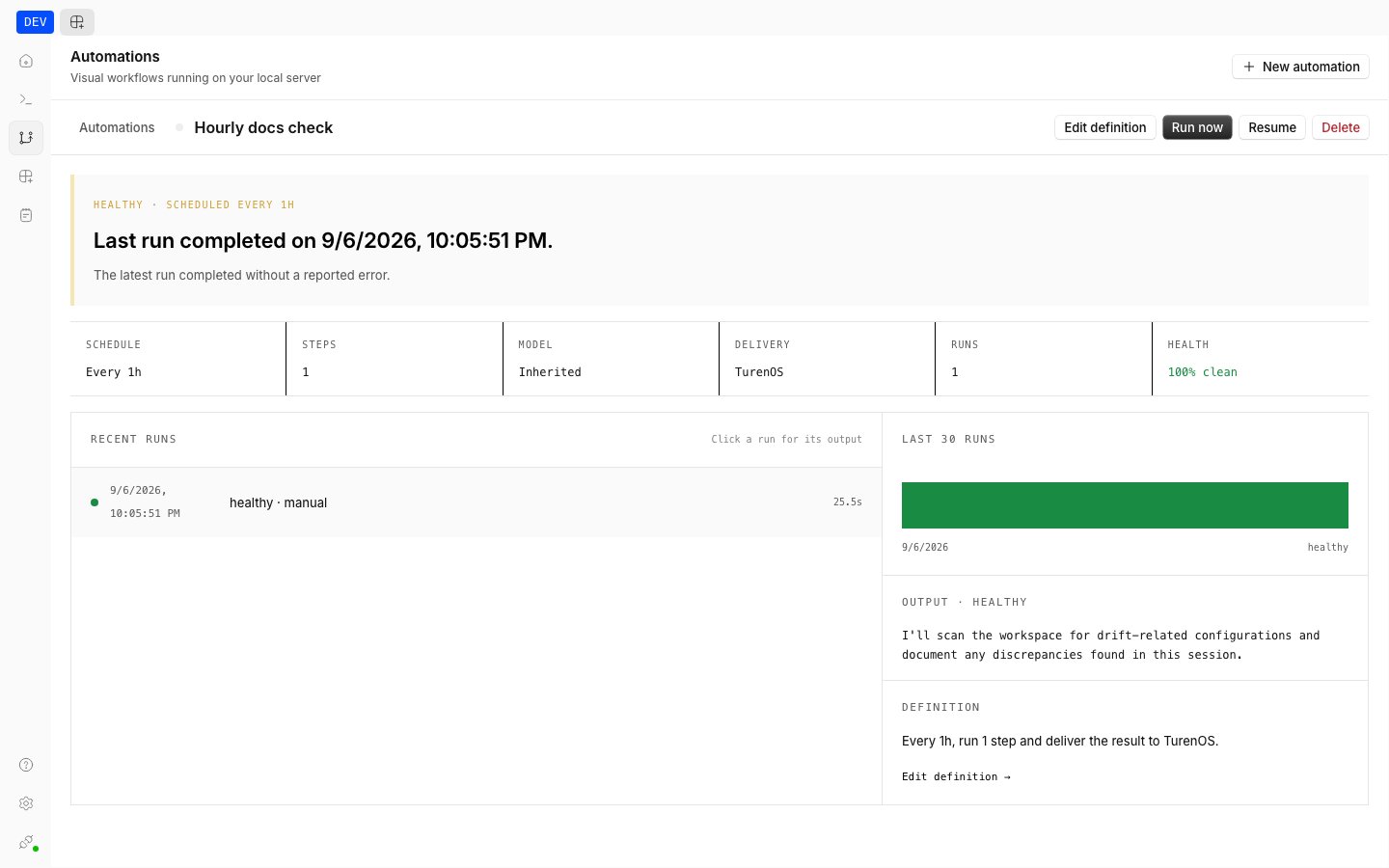
You can watch this in the app: the automation view shows each automation’s schedule and health, with a visual workflow map and trigger inspector for building steps.
Overlap: skip
Automations never run concurrently with themselves. The overlap policy is alwaysskip: if a firing happens while a previous run is still claimed or running under a live lease, the new run is recorded as skipped instead of executing.
Caps and expiry
- At most 50 automations may be active at once, with at most 10 per project directory.
- Automations stop running after seven days: expiry must be in the future and at most seven days out. Expired automations keep their history but no longer fire.
- Automations can be
active,paused,expired, renamed, rescheduled, or deleted. Deleting requires cancelling any active run first.
Agent tools
Agents manage automations with three tools:automation_list— list this machine’s automations. Call it before creating or changing one so you know what already exists.automation_create— create one automation with a trigger plus 1–12 ordered steps. Report the returned id and expiry to the user.automation_update— rename an automation, change its interval, cron, or event trigger, change its inherited agent/model, replace its whole step list, or pause, resume, or delete it. Returnsnullwhen the automation was deleted.
Blueprints
Start from one of these shapes and adapt the trigger and steps: Scheduled checkup — interval trigger (for example every 3600 seconds) with two steps: gather state, then summarize and deliver.0 9 * * MON-FRI, timezone set to your locale) with a research step followed by a report step.
src/**/*.ts with a single verification step.
failure outcomes, with a triage step that only runs when there is something to triage.
Example uses
- Recheck a deployment or incident feed on an interval
- Deliver a weekday-morning repository digest via cron
- Typecheck or lint changed files as they are saved
- Triage failed sessions automatically when they end
- Run a research step followed by a report step, skipping the report when there is nothing new