

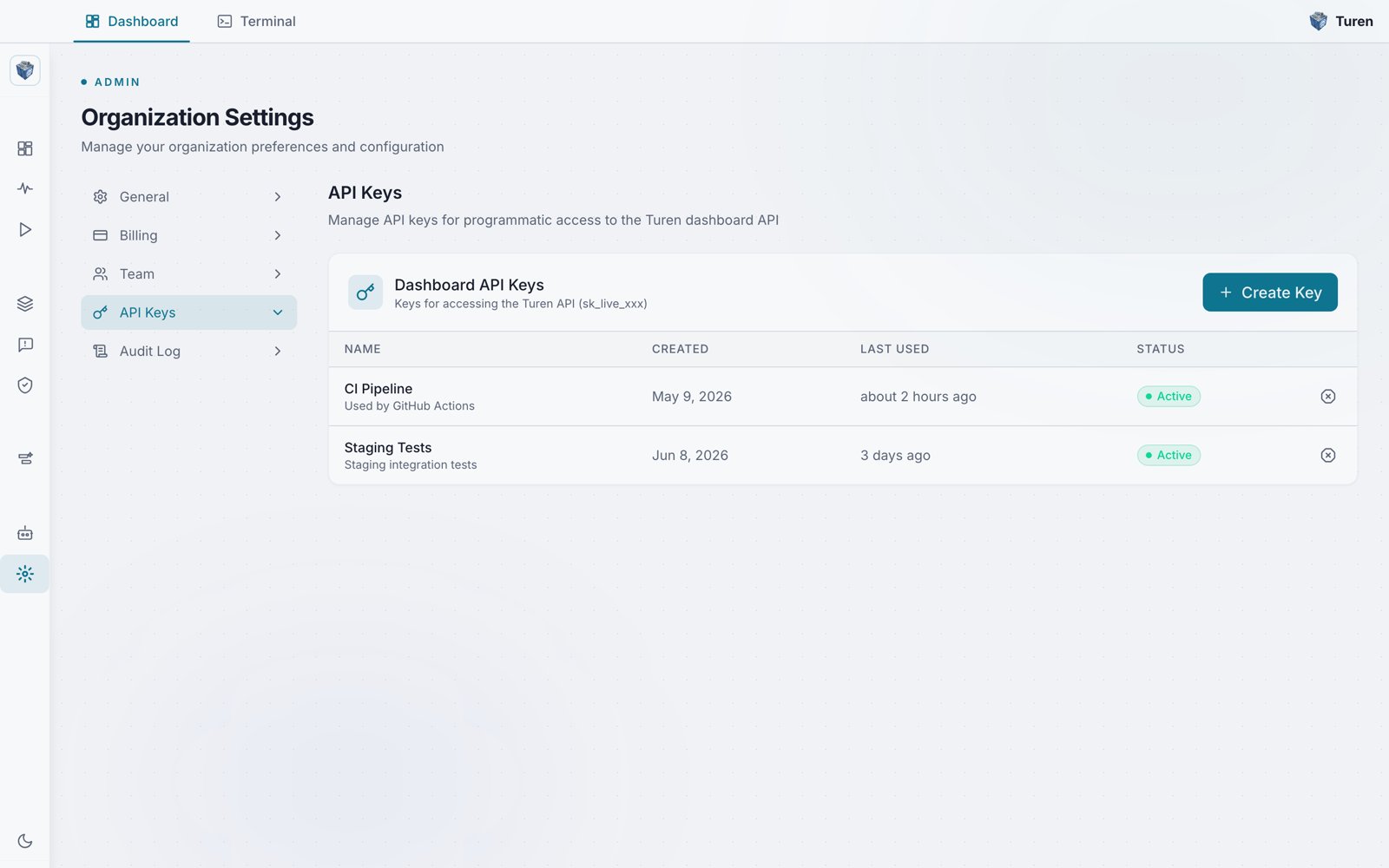
The API Keys tab in Organization Settings, listing dashboard API keys with their created date, last-used time, and status.
Key Format
API keys use the prefixsk_live_ followed by a random string:
API Key Limit
You can create up to 10 API keys per organization.Creating an API Key
Navigate to Platform Settings > Organization Settings > API Keys (/settings/api-keys).
1
Click Create Key
Click the Create Key button.
2
Enter key details
Provide a name (required) and optional description for the key.
3
Copy the key
The full key is shown once. Copy it immediately: you won’t be able to see it again.
Using an API Key
Include the key in theX-API-Key header:
Managing Keys
From Organization Settings > API Keys (/settings/api-keys), you can:
- View all keys: See key names, descriptions, creation dates, last-used timestamps, and status
- Revoke a key: Click the circled X icon to disable a key immediately
- Delete a key: Permanently remove a revoked key by clicking the trash icon
Revoking a key is immediate. Any integrations using the revoked key will stop working right away.
Best Practices
- Use descriptive names so you know what each key is for
- Rotate keys regularly: create a new key, update your integrations, then revoke the old one
- Use one key per integration: this way you can revoke access for a single integration without affecting others
- Monitor last-used timestamps: keys that haven’t been used recently may be stale and should be revoked